How to Set Up a Product Bundle on the Product Page
Jowel
September 10, 2026
7 min read
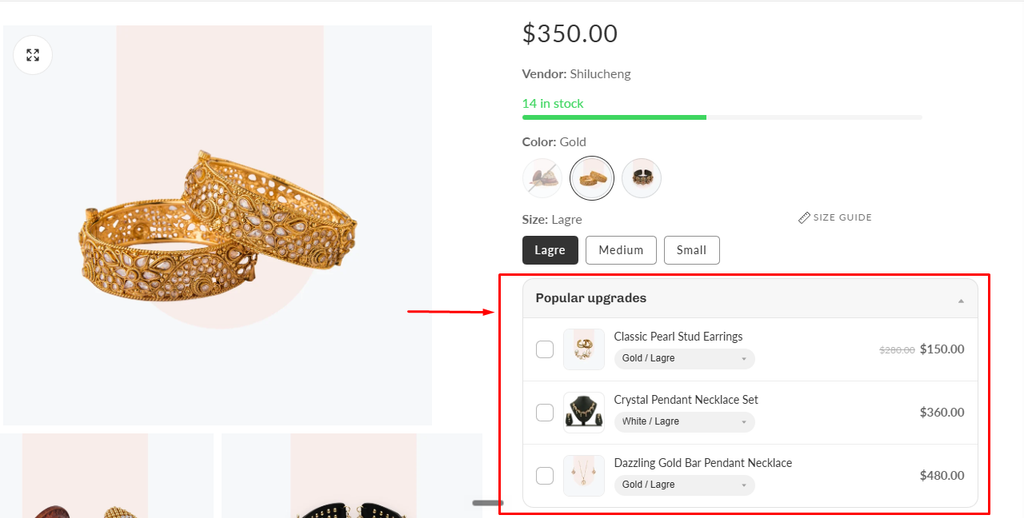
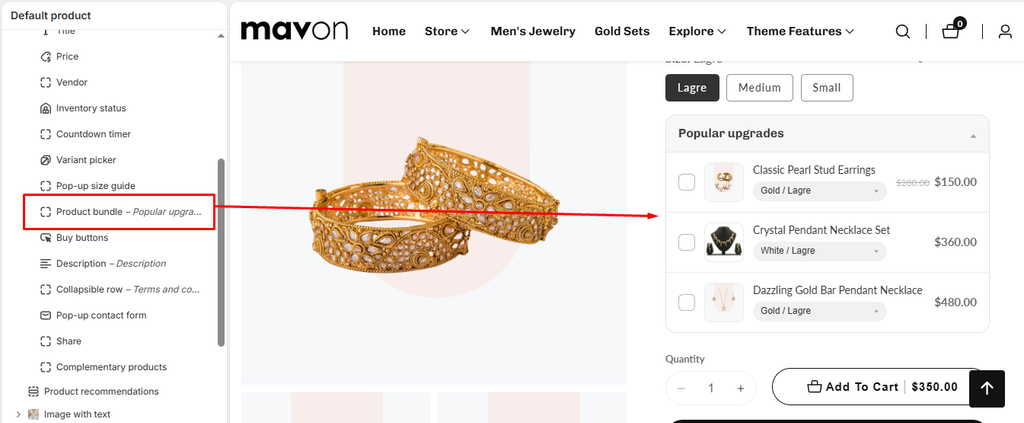
The Product bundle block adds a compact list of related products (“Popular upgrades”) to the product page, right next to the Add to cart button. Customers tick the add-ons they want and everything — the main product plus the selected add-ons — goes into the cart with a single click.
Each row shows the add-on’s image, title, and price, plus a variant selector when the add-on has more than one variant. Customers can’t select sold-out products or sold-out options.
1. Add the block to the product page
From your Shopify admin, go to Online Store > Themes.
Find the Mavon theme and click Customize.
In the top bar, open the template picker and choose Products > Default product (or any other product template you use).
In the left sidebar, click the Product information section to open it.
Click Add block and choose Product bundle.
Drag the block to the position you want. Placing it directly above the Buy buttons block usually works best.
Click Save.
The block is hidden inside quick add / quick view popups, so it only appears on the full product page.
2. Choose which products are offered
There are three ways to fill the block. The theme checks them in this order:
Variant metafield — different add-ons for each variant of the product.
Product metafield — different add-ons for each product.
Products picked in the block — the same add-ons on every product that uses this template.
A metafield value always replaces the products picked in the block. The products picked in the block are the fallback, used when the metafield is empty or not set on that product.
Option A — Pick the products in the block (simplest)
Select the Product bundle block.
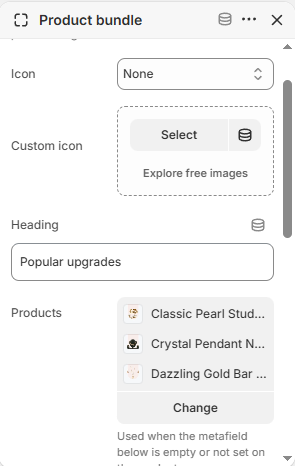
Under Products, click Select products and choose up to 12 products.
Click Save.
Every product using this template will now show the same add-ons. The main product is automatically skipped, so it never offers itself as an add-on.
Product bundle
Option B — Different add-ons for each product (product metafield)
Use this when each product needs its own set of add-ons, but you still want to configure the block only once.
Create the metafield definition
Go to Settings > Custom data > Products.
Click Add definition.
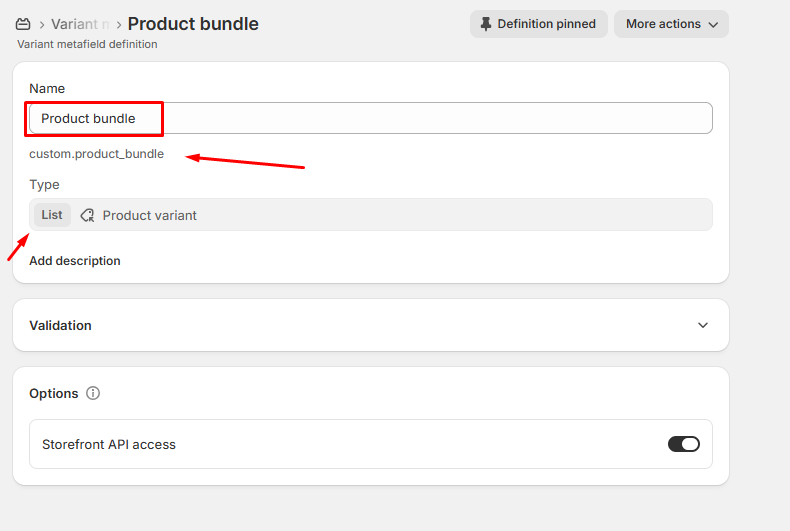
Set the Name to Product bundle. The namespace and key are filled in as custom.product_bundle.
Click Select type and choose Product.
Turn on List of values so you can add more than one add-on.
Click Save.
Variant > Product bundle
Fill the metafield on a product
Go to Products and open a product.
Scroll down to the Metafields area and find Product bundle.
Click Select products and choose the add-ons for this product.
Click Save.
Point the block at the metafield
Back in the theme editor, select the Product bundle block.
In the Metafield field, enter the namespace and key: custom.product_bundle. This is the default value, so usually no change is needed.
Click Save.
Option C — Different add-ons for each variant (variant metafield)
Use this when, for example, each size or colour needs its own upgrades.
Go to Settings > Custom data > Variants and create a definition exactly as described in Option B (nameProduct bundle, type Product, List of values turned on).
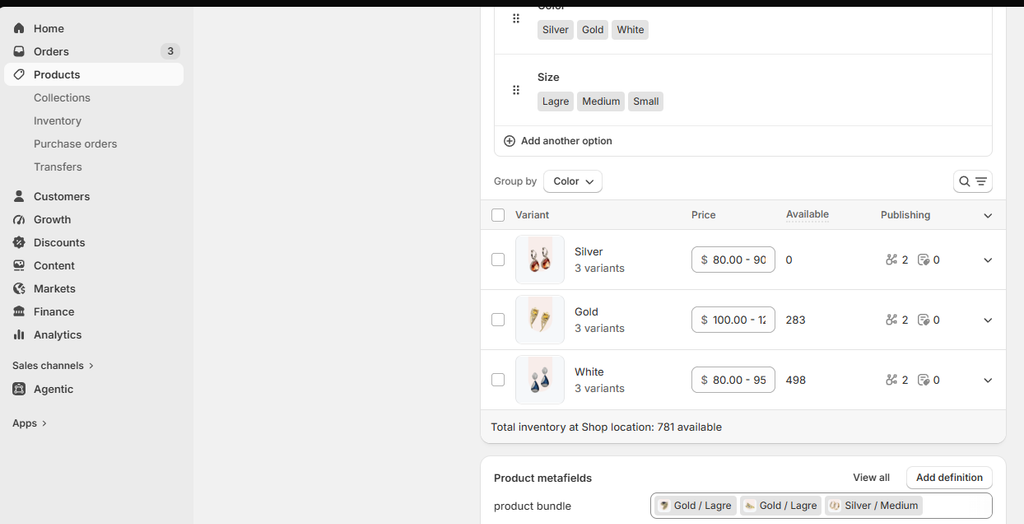
Open a product, click a variant, scroll to Metafields, and pick the add-ons for that variant.
Repeat for each variant.
The variant metafield is read first. When the customer switches variant on the product page, the add-on list refreshes automatically to match the newly selected variant.
Offering one exact variant as an add-on
If you want to offer a specific variant (for example, “Gift wrap – Red”) instead of letting the customer choose, create the metafield with the type Product variant instead of Product. Single values and lists both work for either type.
3. Block settings
Setting
What it does
Icon
Built-in icon shown next to the heading. Choose None for no icon.
Custom icon
Upload your own image instead of the built-in icon.
Icon width
Size of the custom icon, 12–60 px. Only shown when a custom icon is uploaded.
Heading
Title of the block, for example “Popular upgrades”.
Products
The add-ons shown when the metafield is empty or not set. Up to 12 products.
Metafield
Namespace and key of the metafield holding the add-ons, for example custom.product_bundle. Its type can be Product or Product variant, single or a list. A variant metafield is read before the product one. When a value is found, it replaces the products picked above.
Initially display as opened
Whether the block starts expanded or collapsed.
Show variant selector for products with multiple variants
Adds a dropdown to rows whose add-on has more than one variant, so the customer picks the option.
Show selection summary
Shows a small line under the list counting the selected add-ons and totalling their price.
Summary text (one item)
Text used when one add-on is selected. [count] is replaced with the number, for example [count] add-on selected.
Summary text (multiple items)
Text used when more than one add-on is selected, for example [count] add-ons selected.
4. Showing the running total in the Add to cart button
The Buy buttons block can print a live total inside the Add to cart button that includes the ticked add-ons.
Select the Buy buttons block.
Turn on Show product price.
Click Save.
The total now follows the selected variant, the quantity, and every add-on the customer ticks.
5. How it behaves on the storefront
Ticking an add-on updates the summary line and the Add to cart button total instantly.
Clicking Add to cart adds the main product and every ticked add-on in one request. Each add-on is added with a quantity of 1.
After a successful add to cart, all checkboxes are cleared.
While the main product cannot be added (sold out, or an unavailable option is selected), the add-ons are disabled too.
Sold out add-ons and sold out variant options cannot be selected and are marked Sold out.
6. Troubleshooting
While you are in the theme editor, the block prints a short message when it has nothing to display. Use it to see what to fix:
Message
Meaning
Fix
Metafield is empty. Pick products above, or enter a metafield.
The Metafield field is blank and no products are picked.
Pick products in the block, or enter a metafield such as custom.product_bundle.
… is not a valid metafield.
The value is missing the namespace or the key.
Enter both parts separated by a dot, for example custom.product_bundle.
Nothing found at … on this product or on its selected variant …
The metafield exists, but this product and its selected variant have no value, and no products are picked in the block.
Fill the metafield on the product or variant, or pick fallback products in the block.
Read … but none of its entries could be shown.
The metafield holds a value of the wrong type.
Recreate the definition with the type Product or Product variant.
Other things to check:
The block does not appear on the live store. The block is hidden when it has no add-ons to show. Confirm the product has a metafield value, or that products are picked in the block.
The main product is missing from the list. This is intended — the current product is always skipped so it cannot be added twice.
No variant dropdown on a row. Turn on Show variant selector for products with multiple variants. The dropdown only appears for add-ons that actually have more than one variant, and never for add-ons set through a Product variant metafield, because those already point to one exact variant.
The list does not change with the variant. The add-ons only follow the variant when they come from a variant metafield. Product metafields and picked products stay the same for the whole product.