Address
304 North Cardinal St.
Dorchester Center, MA 02124
Work Hours
Monday to Friday: 7AM - 7PM
Weekend: 10AM - 5PM

The Video testimonials block adds a row of round video thumbnails to your product page. When a shopper taps one, a reels-style player opens in the corner of the screen with a Shop button for the product.
There are two ways to add videos. Pick one:
Screenshot: the finished block on a live product page
Before showcasing product testimonials, create a custom metaobject definition in your Shopify admin. This holds one testimonial — a thumbnail image paired with a video.
Step 1.1 — In your Shopify admin, go to Settings > Metafields and metaobjects. Select the Metaobjects tab, then click Add definition.
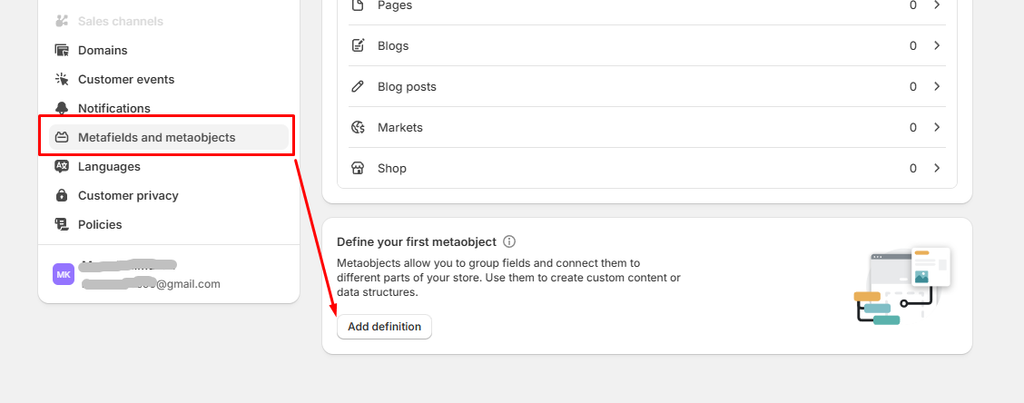
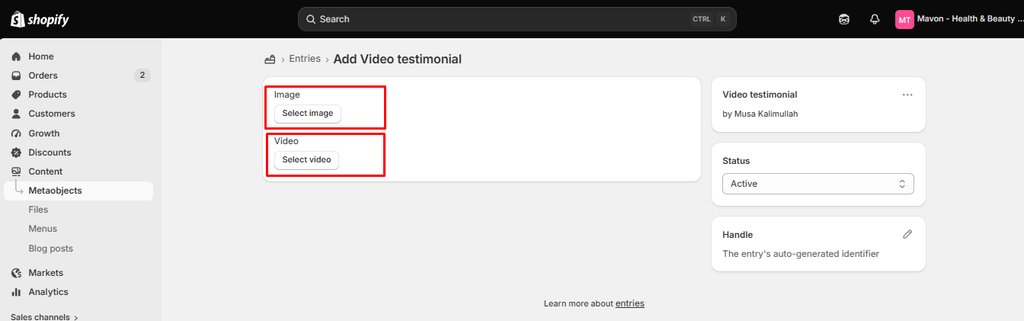
Step 1.2 — Name the definition Video testimonial and add exactly two fields:
| Field name | Field type | Required |
|---|---|---|
| Image | File — accepts images only | Optional, but recommended |
| Video | File — accepts videos only | Required |
Important: the field keys must be image and video. Shopify creates the key from the name you type, so naming the fields Image and Video gives you the right keys. Click each field to confirm the key before saving — a different key such as thumbnail or video_file will not be read by the theme.
If you leave the image empty, the theme uses the video’s own preview frame as the thumbnail.
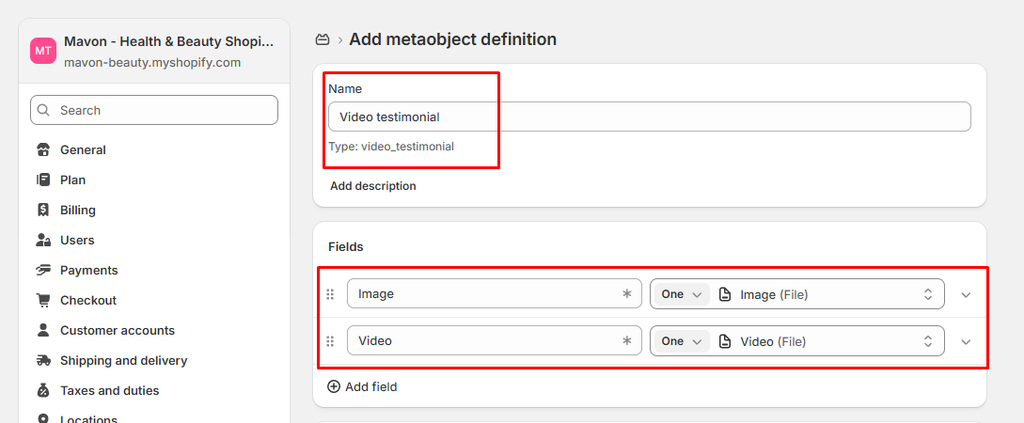
This connects the metaobject to your products so the theme can read the data.
Step 2.1 — In your Shopify admin, go to Settings > Metafields and metaobjects. Select the Metafields tab, then select Products.
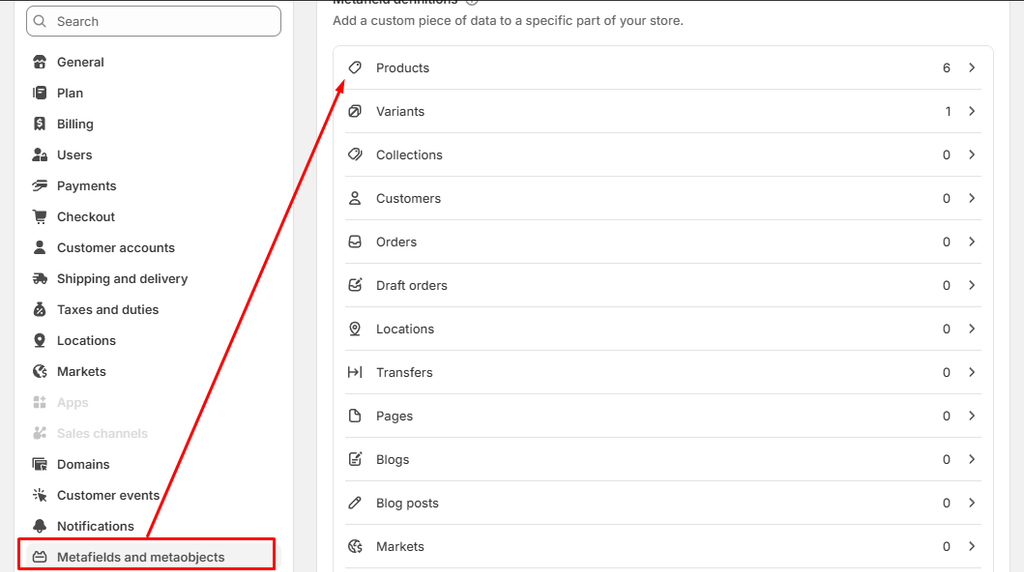
Step 2.2 — In Product metafield definitions, click Add definition.
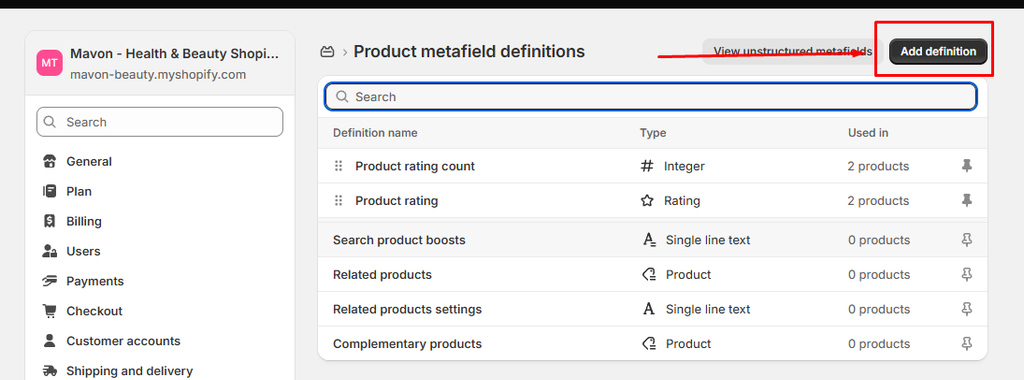
Step 2.3 — Configure the definition:
custom.video_testimonialsImportant: it must be a list of entries. A single-entry metafield will not work, because the theme reads a list.
Write the namespace and key down exactly as you typed it — you will need it again in Step 5.
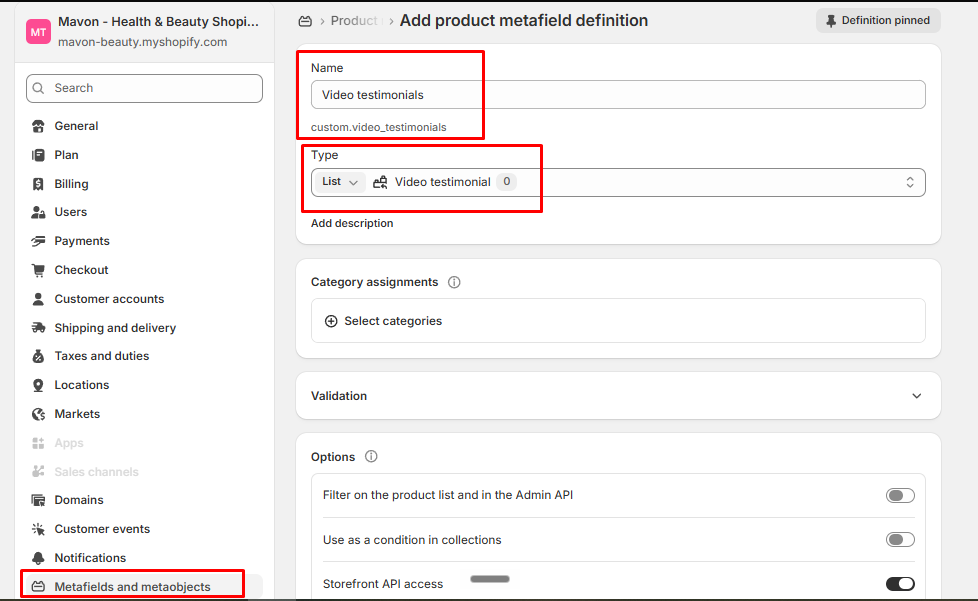
Each entry represents one testimonial — a thumbnail image paired with a video file.
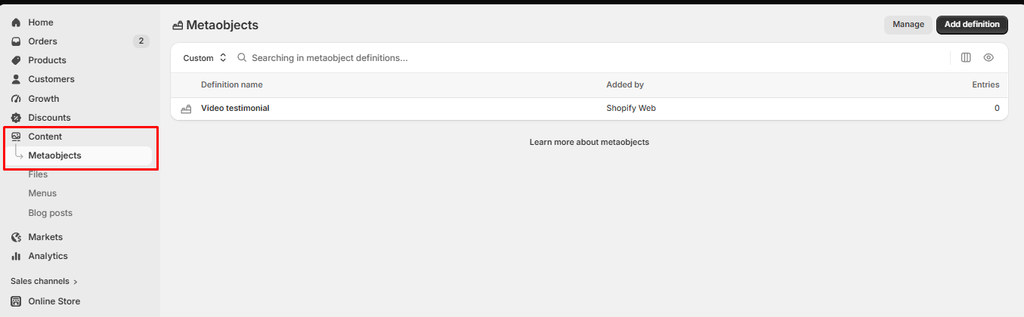
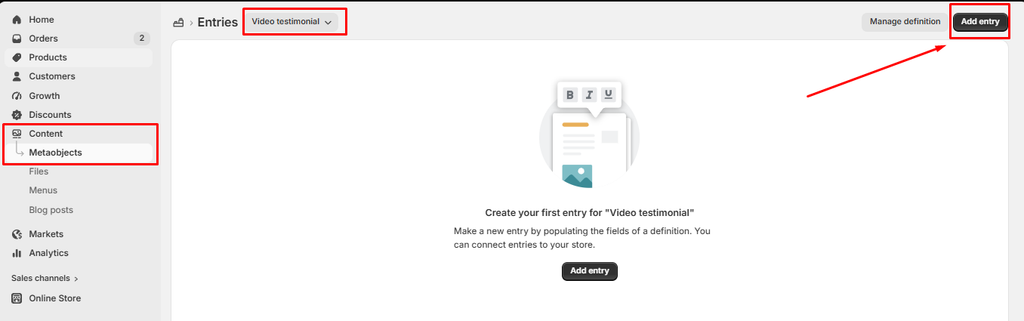
Step 3.1 — In your Shopify admin, go to Content > Metaobjects. Select the Video testimonial definition, then click Add entry.
Step 3.2 — Upload the two files:
Save the entry and repeat for each testimonial. The same entry can be reused on as many products as you like.
Once you have entries, connect them to a product through the product metafield.
Step 4.1 — Go to Products and open the product you want to add testimonials to.
Step 4.2 — Scroll down to the Metafields section. Find Video testimonials (custom.video_testimonials) and click to edit it.
Step 4.3 — Select the entries you want and save. The order you set here is the order shoppers see.
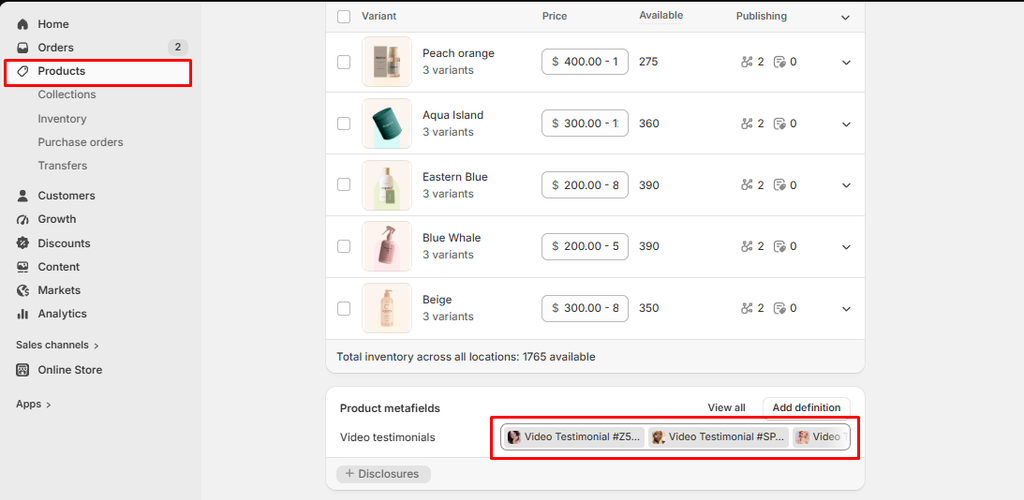
Step 5.1 — Go to Online Store > Themes > Customize and open a product page.
Step 5.2 — In the Product information section, click Add block and choose Video testimonials.
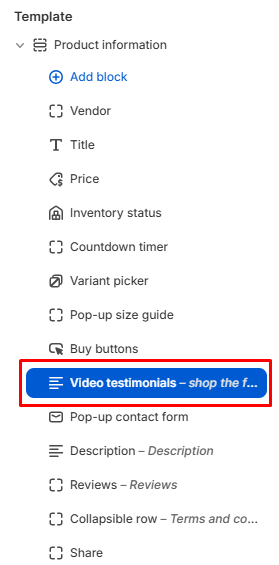
Step 5.3 — Set Videos from:
Important: if you used custom.video_testimonials in Step 2, you must type custom.video_testimonials into the Metafield box. The box comes preset to custom.video_testimonials, and leaving it that way means nothing will show on the product page.
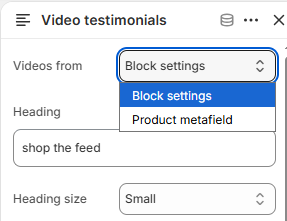
Step 5.4 — Click Save.
All of these are optional — the defaults work out of the box.
| Setting | What it does |
|---|---|
| Heading | Text above the thumbnails. Leave it empty to hide it. |
| Thumbnail shape/size | Circle, rounded or square, from 50px to 120px. |
| Ring thickness/colour | The ring around each thumbnail. Set the thickness to 0 to remove it. |
| Player position | Bottom right or bottom left of the screen. |
| Player shape | Portrait 9:16 (reels), Portrait 4:5, Square, or Custom height. Anything but Custom keeps the video from being cropped, so use Custom only when you need an exact height. |
| Player width | Set separately for desktop and mobile. |
| Shop button label | The text on the button over the video. |
| Start muted | Leave this on. Browsers block sound until a shopper taps the sound button anyway. |
Screenshot: the block settings panel in the theme editor
The page stays usable while the player is open — it floats in the corner rather than blocking the screen.
Screenshot: the open player with the product card
Nothing shows up on the product page
custom.video_testimonials)?image and video?The sound and pause buttons are missing. That video is a YouTube or Vimeo link. Those play inside the provider’s own player, which the theme cannot control. Upload the video file instead if you need those buttons.
There is no sound when the video opens. That is normal. Every browser blocks sound on autoplay, so the shopper taps the sound button.
The video looks cropped or has black bars. Set the player shape to match your footage (9:16 for reels) instead of Custom height.
The player is hidden behind something. An app widget or a sticky bar is sitting on top of it. Move the player to the other corner, or ask the app’s support to lower its layer.