To add a custom badge to your product using a metafield, please follow these detailed steps along with the accompanying screenshots for guidance:
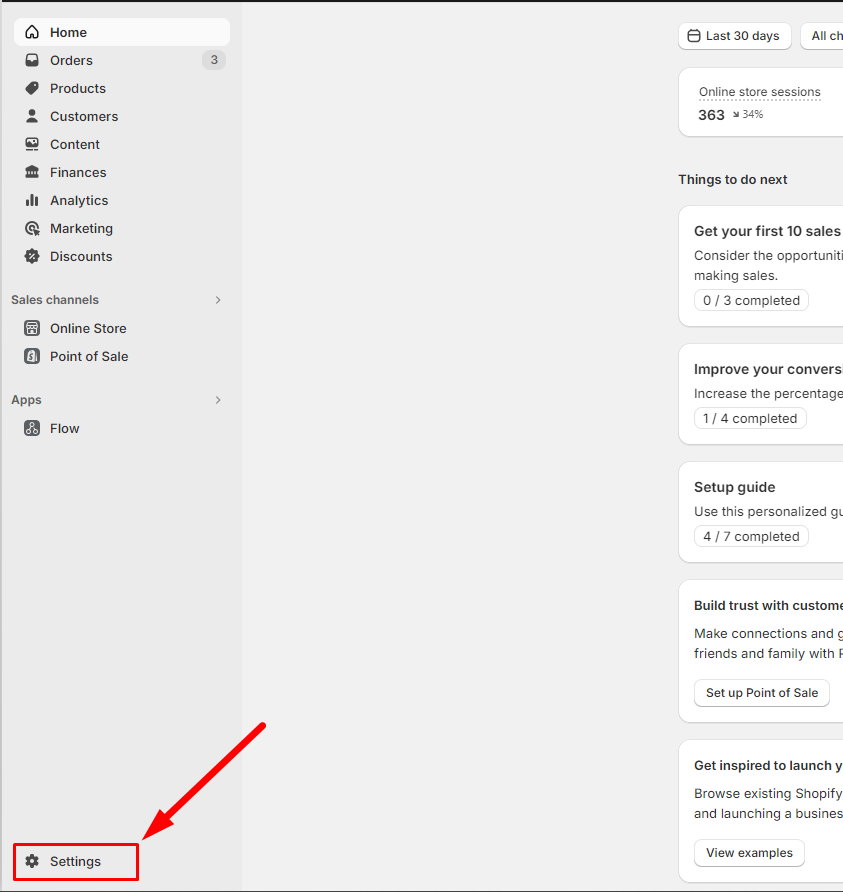
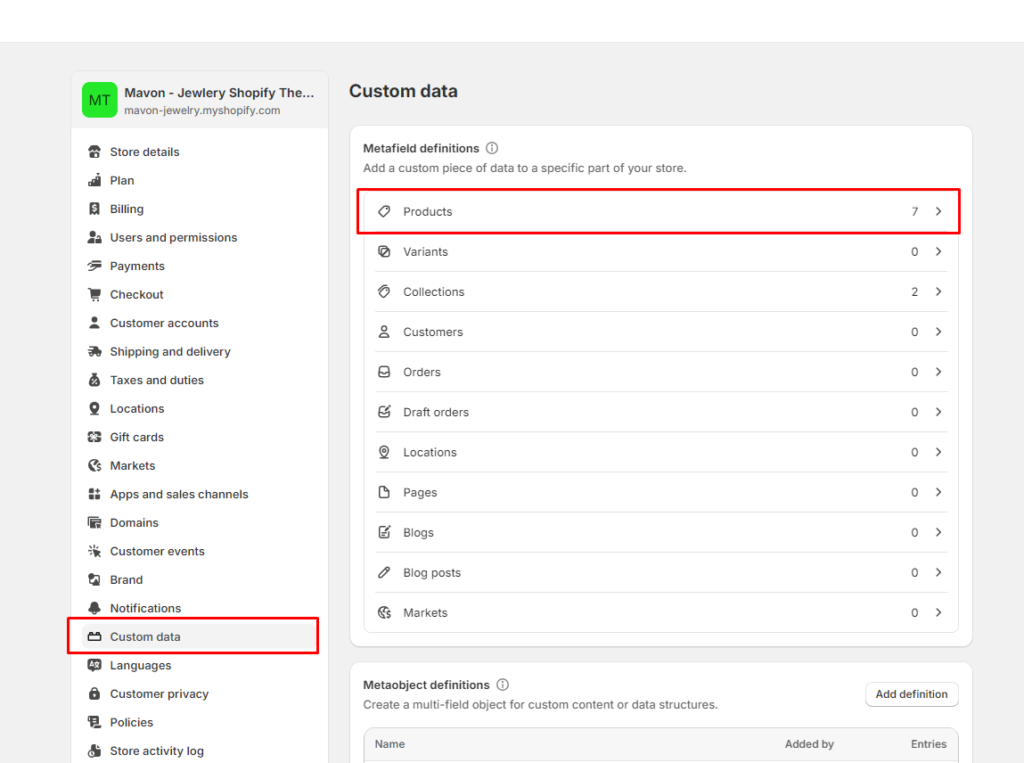
Navigate to the “Custom Data Settings” in your store’s admin page. For reference, see the screenshots here:
Custom Data Settings Overview
Entering Custom Data Settings
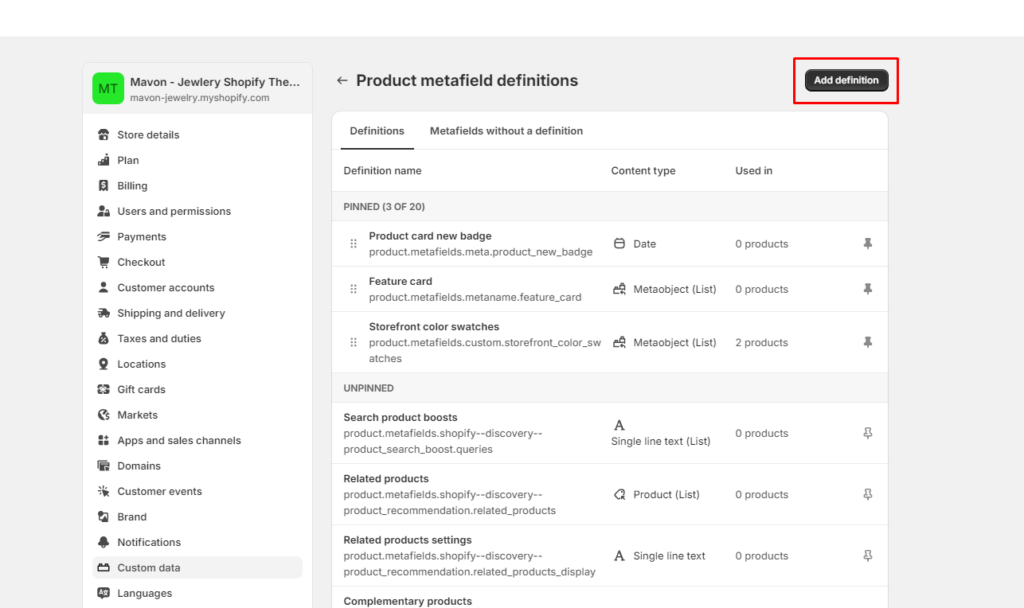
Once in the settings, you will need to add a definition for your new metafield. You can do this by following the instructions shown in this screenshot:
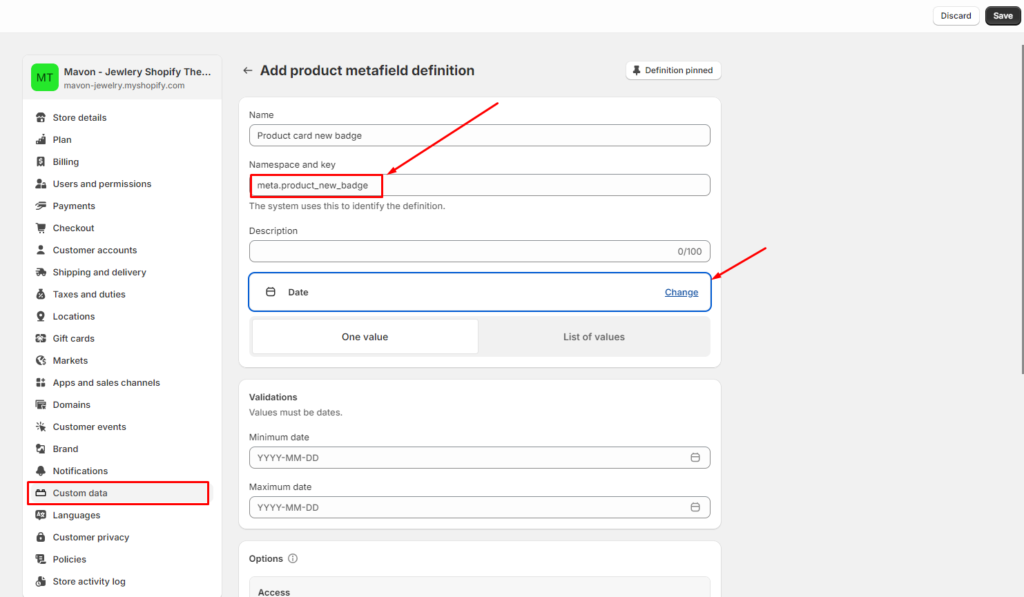
With the definition in place, proceed to add the metafield information as follows:
Please input the metafield information accurately:
Metafield Name: Product card new badge (This is a label; you may choose any name you prefer)
Namespace and Key: meta.product_new_badge (This identifier is mandatory and must be used as given)
Type: Select “Date” from the available options
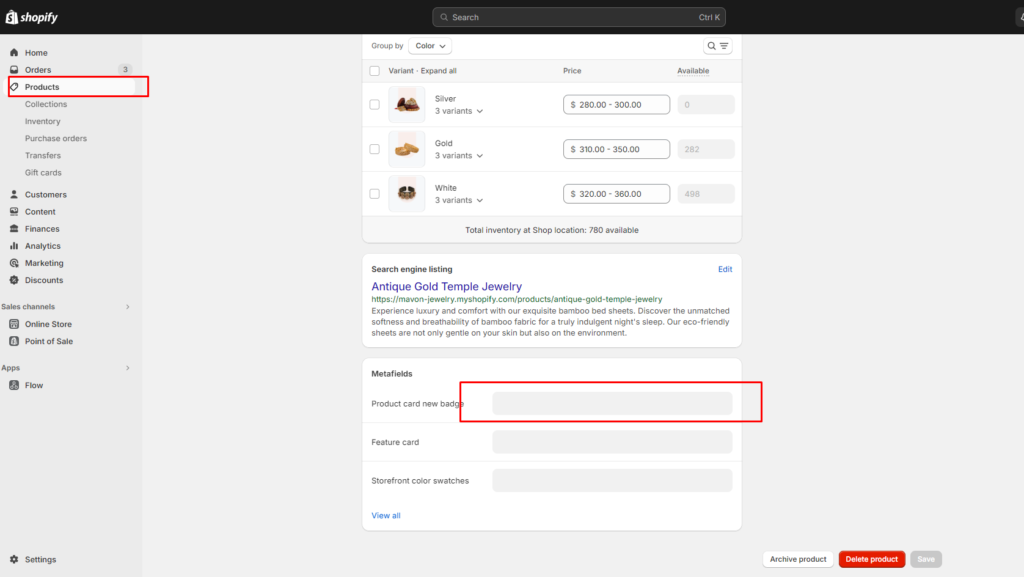
To associate the metafield with a specific product:
Go to the product details page (Specific Product Page) by following screenshot:
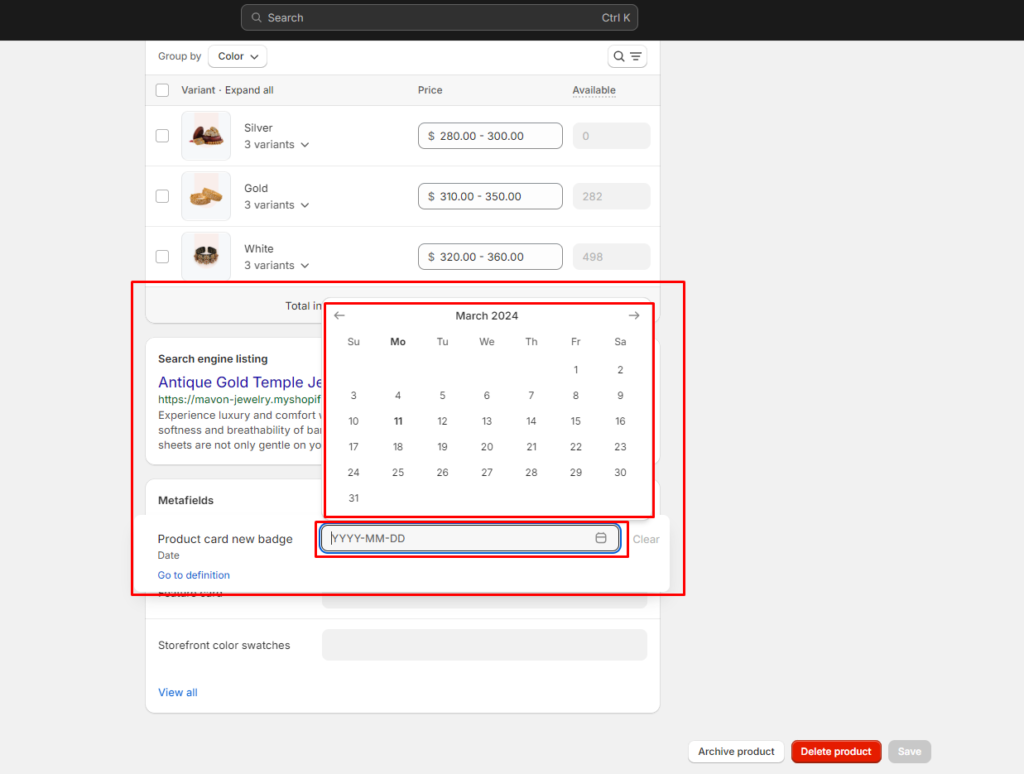
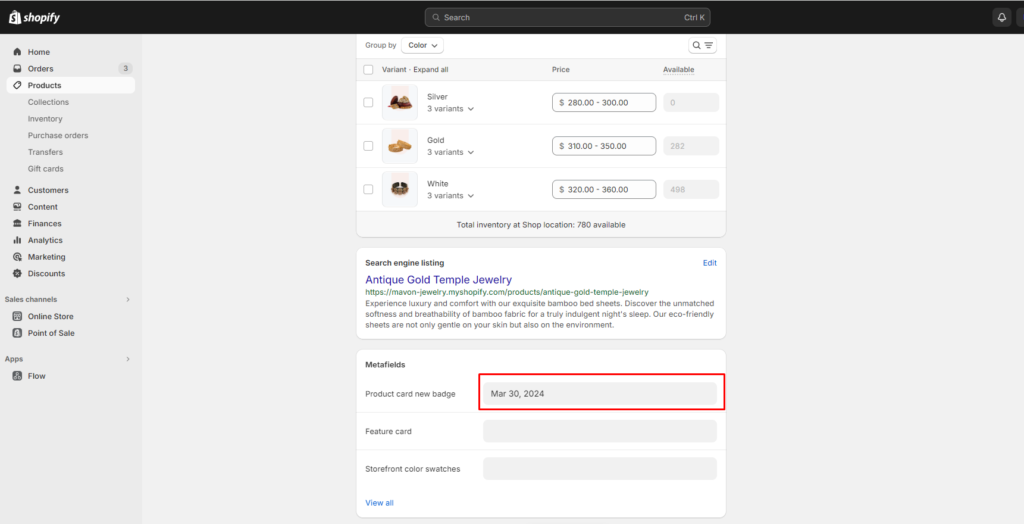
Set the date for the badge’s display period on the product page (Setting Badge Display Date):
Decide the duration for which the badge will appear on the product (Duration Settings):
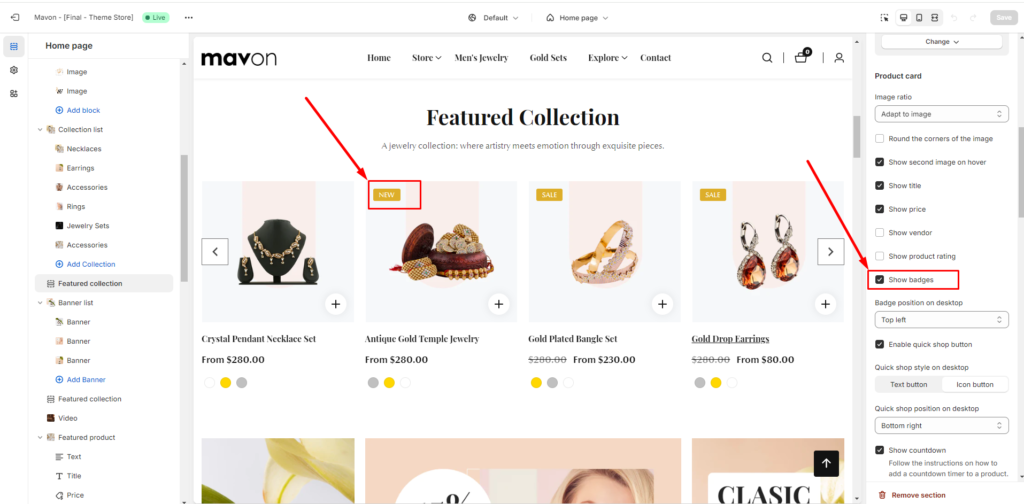
Enable the badge display option for specific sections as required(Enabling Badge for Sections):
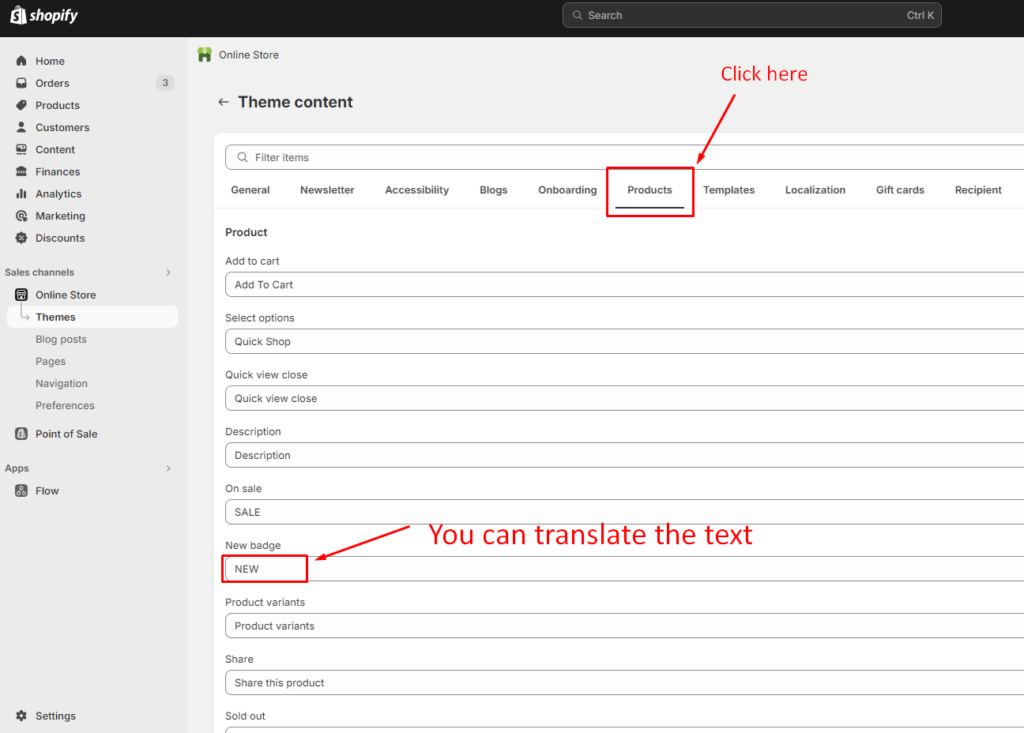
Finally, to localize the badge text for different languages, follow these instructions:
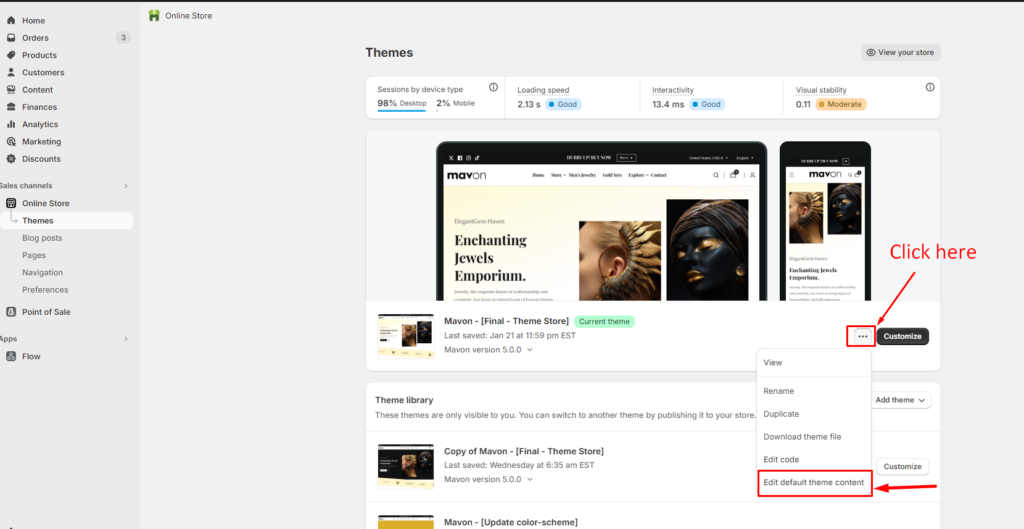
Go to the “Edit Default Theme Content” section (Edit Theme Content):
Translate the badge text as needed (Translate Badge Text):
If you require further clarification or assistance, please don’t hesitate to let us know. We’re here to help!