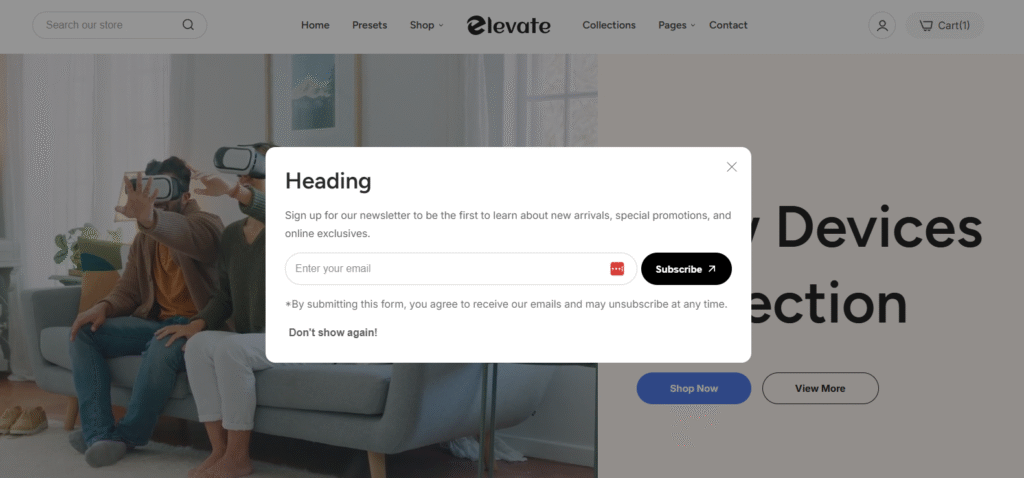
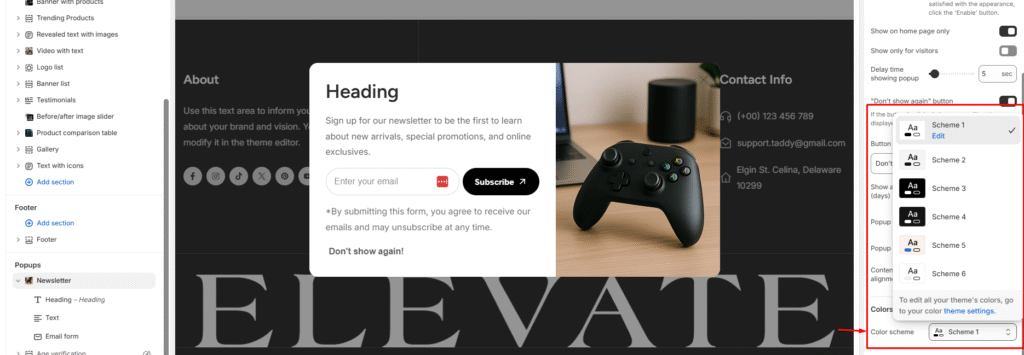
The newsletter popup is an effective tool for collecting emails from website visitors and building your email marketing contact list. This feature offers multiple customization options to optimize your subscription process.
Configure the Newsletter Popup
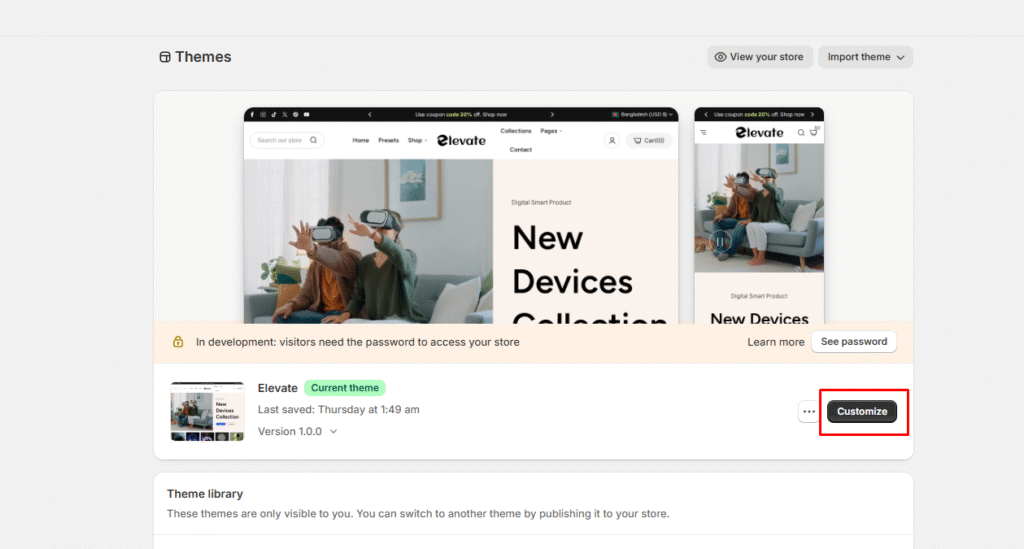
Go to Shopify Admin > Online Store > Themes
Find your Elevate theme and click Customize
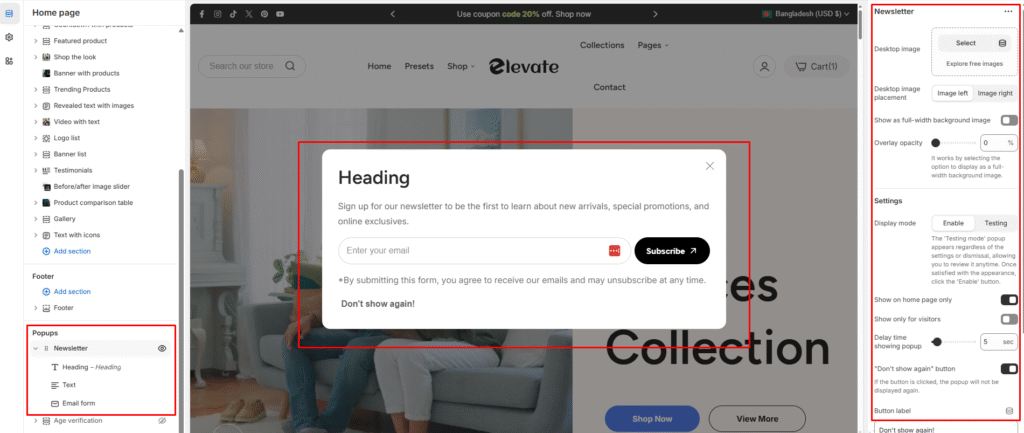
Navigate to the Popup section in the left sidebar
Configure your popup settings
Popup Content Settings
Configure the text and messaging for your newsletter popup:
Basic Settings:
Get 10% off your first order – Default heading text
Text – Customize the description message
Email form – Configure the email input field
Add block – Add additional elements to your popup
Image and Color Settings
Customize the visual appearance of your newsletter popup:
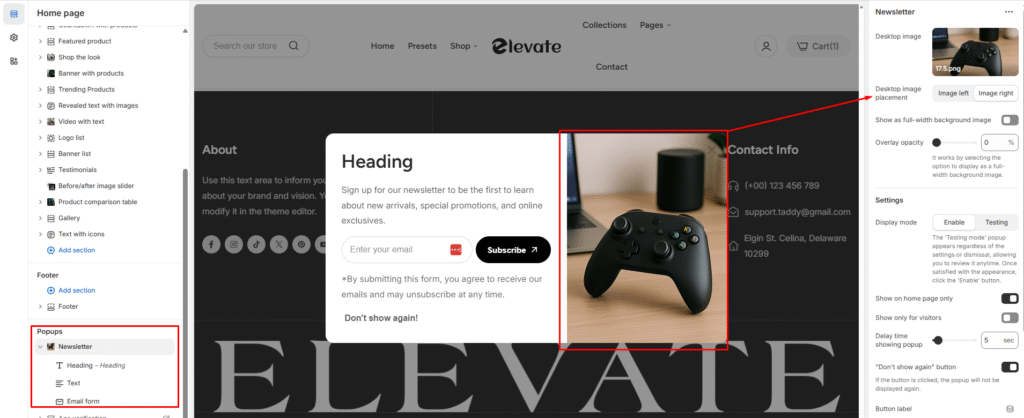
Desktop Image:
Upload an attractive image for the popup (recommended size for optimal display)
Image UX – Configure image positioning and layout
Image Split – Adjust how the image appears alongside the form
Color Scheme:
Background – Choose background color (#FF6B6B shown in example)
Text – Set text color (#FFFFFF)
Button Background – Customize subscribe button color (#424242)
Button Text – Set button text color (#FFFFFF)
Display Settings
Control when and how your popup appears:
Popup Timing:
Show only for visitors – Target new visitors only
Delay timing – Set delay before popup appears
Exit intent – Show popup when user tries to leave
Popup Position:
Center – Display popup in center of screen
Content alignment – Left, center, or right alignment options