Step 1: Access Your Theme Customizer
Navigate to your theme settings:
- Go to your Shopify Admin dashboard
- Click Online Store > Themes
Step 2: Open Theme Customizer
Access the customization panel:
- Find your Elevate theme on the Themes page
- Click the Customize button next to your active theme
Step 3: Access Header Settings
Navigate to the header configuration:
- On the left-hand menu of the homepage
- Click on the Header section
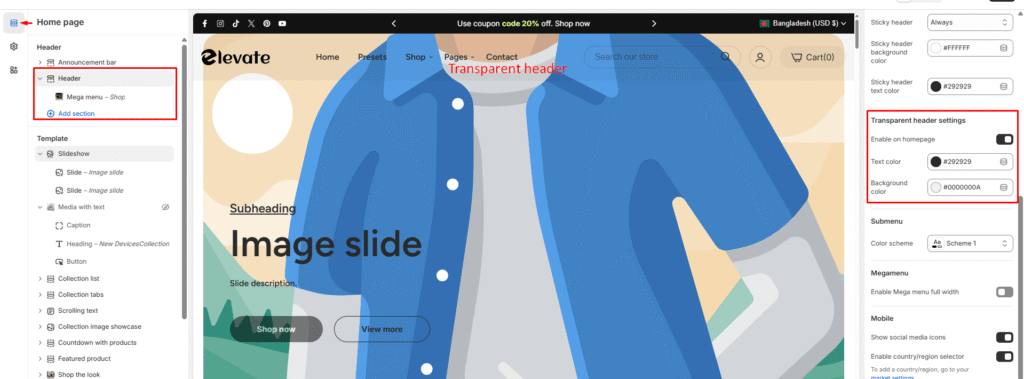
Step 4: Enable Transparent Header
Activate the transparency settings:
- In the Header section configuration panel
- Scroll down to find Transparent header settings
- You will see the option “Enable on homepage”
- Check this option to turn on the transparent header
Step 5: Save Your Changes
Apply the changes to your store:
- Click Save to apply your settings
- Preview your store to confirm the header now appears transparent over your content