Address
304 North Cardinal St.
Dorchester Center, MA 02124
Work Hours
Monday to Friday: 7AM - 7PM
Weekend: 10AM - 5PM

Step 1: Navigate to Online Store > Themes from your Shopify admin dashboard.
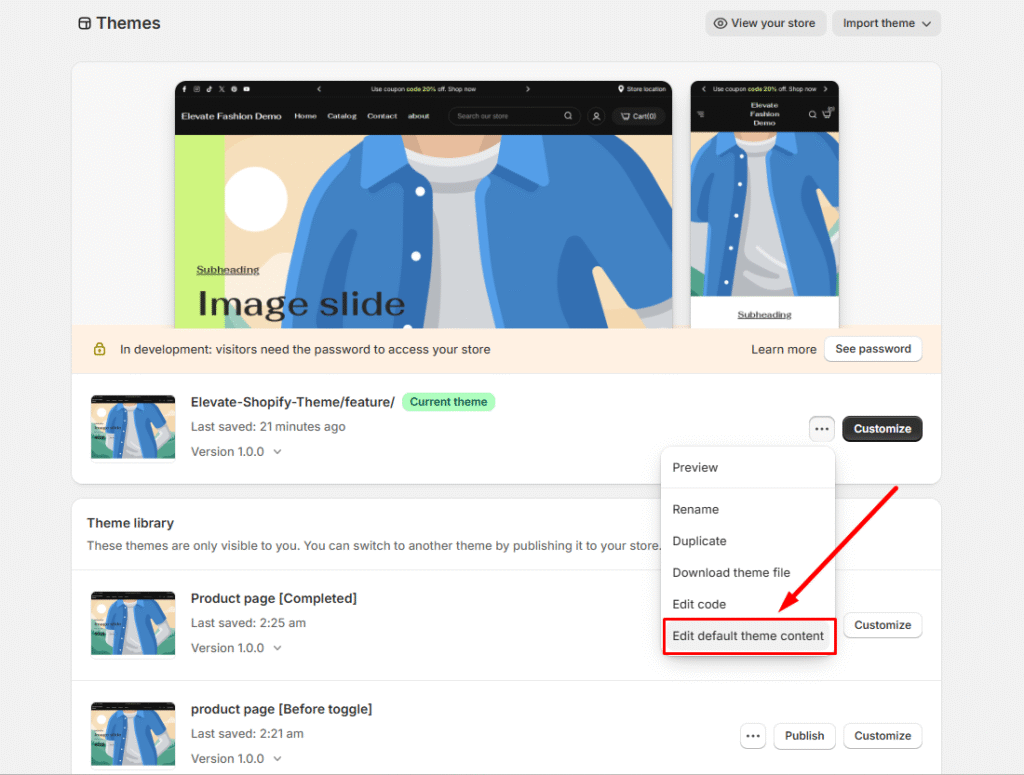
Step 2: Locate the theme you want to modify, then click the Actions menu (three dots icon) and select Edit default theme content.
Note: You can customize or remove the “Powered by Shopify” message to create a cleaner, more branded store appearance.
Step 3: In the Filter items search box, type “powered” to quickly locate the relevant settings.
Step 4: Find the Powered by Shopify text field and replace the existing text with a single space using your keyboard’s space bar.
Optional: Repeat this process for the Powered by Shopify HTML field, which controls the message on your password-protected store’s “Opening Soon” page.

Step 5: Click Save to apply your changes.
The “Powered by Shopify” text will no longer appear in your store’s footer, giving you a cleaner, more professional look that puts the focus entirely on your brand.