Address
304 North Cardinal St.
Dorchester Center, MA 02124
Work Hours
Monday to Friday: 7AM - 7PM
Weekend: 10AM - 5PM

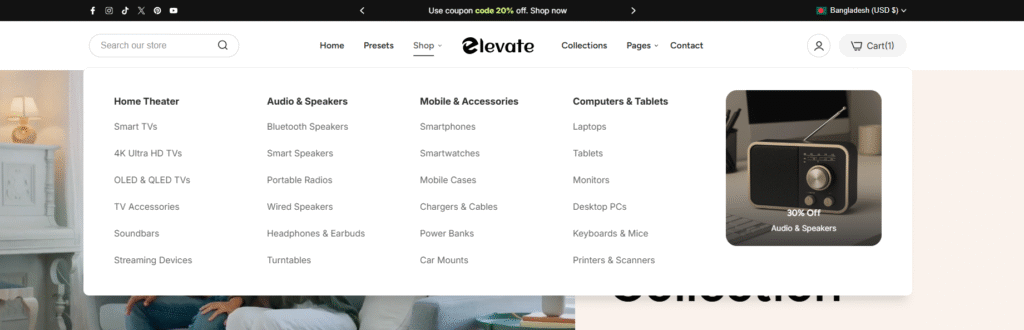
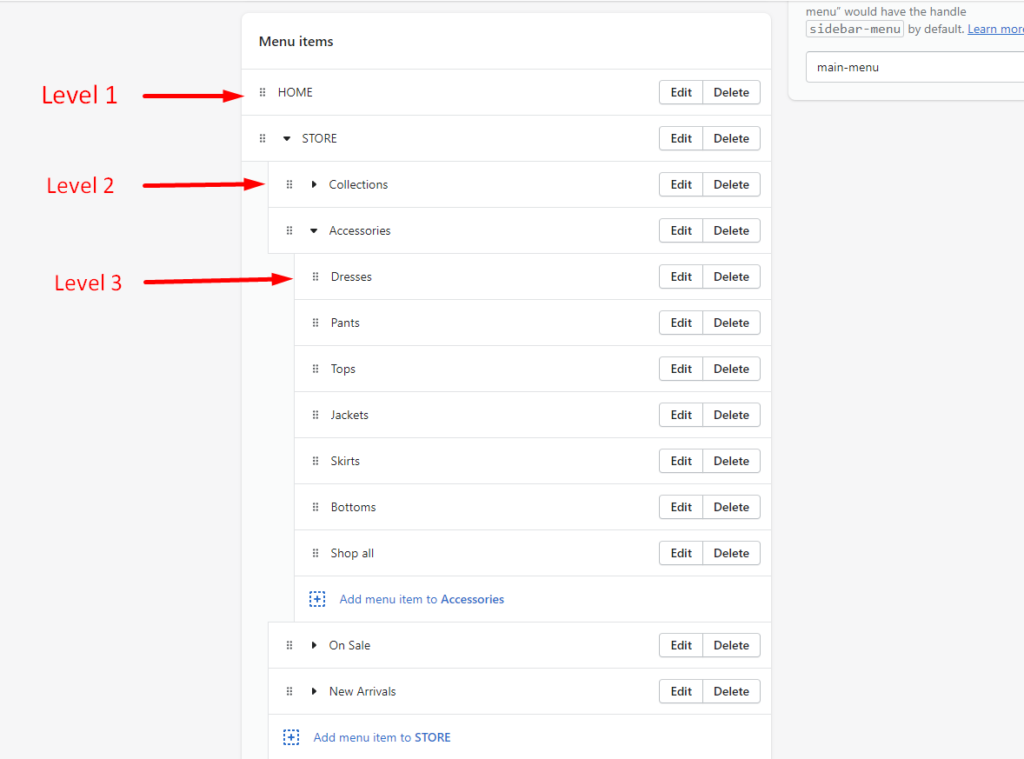
**You must create multiple levels of your menu using the native Shopify navigation.
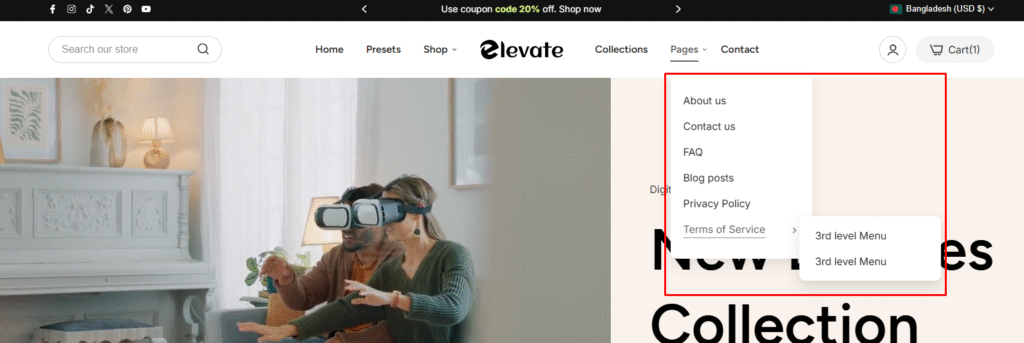
** After adding 3rd level menu, you will get a menu appearance that looks like this screenshot **
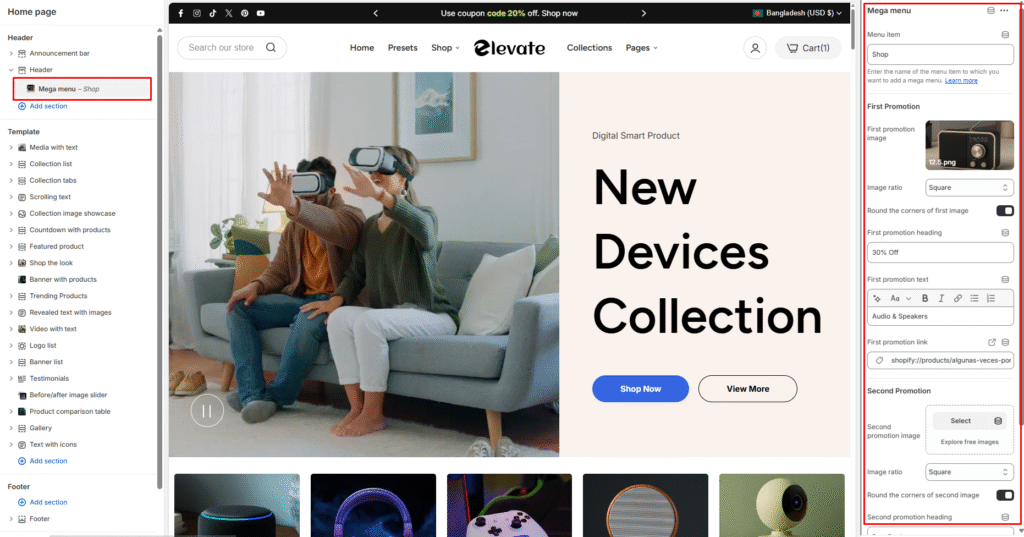
| Settings | Description |
| Menu item | Enter the name of the menu item to which you want to add a mega menu. |
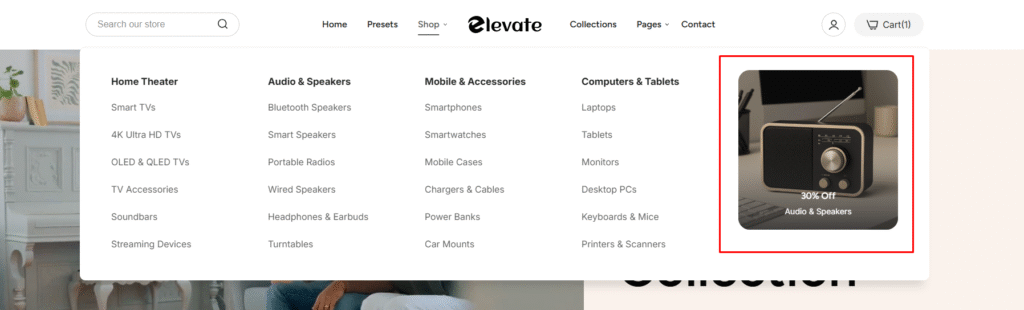
*** You have the option of uploading two images for two promotions. They all have the same settings:
| Settings | Description |
| Image | This is a setting to display an image in the mega menu as a promotion. |
| Image ratio | The image ratio for the promotion is as follows: Adapt to image(Default): The aspect ratio of the images is used. This prevents cropping of the images. Square: Images are cropped to a 1:1 aspect ratio. Portrait: Images are cropped to a 2:3 aspect ratio. Landscape: Images are cropped to a 3:2 aspect ratio. Wide: Images are cropped to a 16:9 aspect ratio. |
| Round the corners of the image | If you enable it, the promotion image corners will be round. By default, enabled it. |
| Heading | A promotion title can be displayed. If you don’t want it to be displayed, simply clear the field. |
| Text | A promotion text can be displayed. If you don’t want it to be displayed, simply clear the field. |
| Link | You can add a link to a single promotion. |