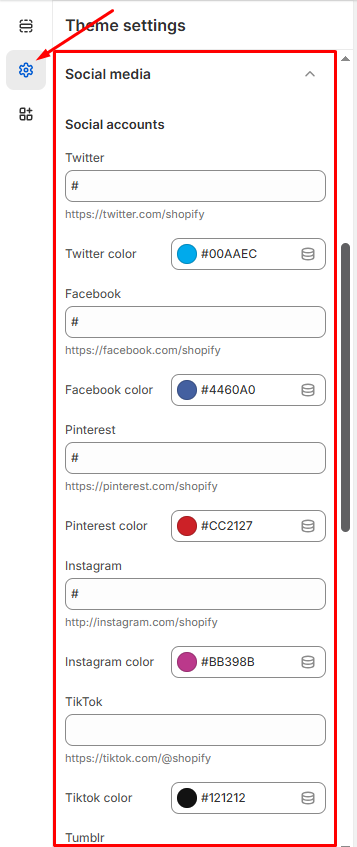
Connect your social media accounts and customize their appearance on your store.
How to Access
- Go to Admin → Online Store → Themes
- Click Customize on your theme
- Select Theme Settings → Social media
Social Accounts
Platform Setup
Enter your social media profile URLs for each platform:
- Twitter: Add your Twitter profile URL
- Format:
https://twitter.com/yourhandle
- Custom color: Light blue (
#00AAEC)
- Facebook: Add your Facebook page URL
- Format:
https://facebook.com/yourpage
- Custom color: Blue (
#4460A0)
- Pinterest: Add your Pinterest profile URL
- Format:
https://pinterest.com/yourprofile
- Custom color: Red (
#CC2127)
- Instagram: Add your Instagram profile URL
- Format:
http://instagram.com/yourhandle
- Custom color: Purple (
#BB398B)
- TikTok: Add your TikTok profile URL
- Format:
https://tiktok.com/@yourhandle
- Custom color: Black (
#121212)
- Tumblr: Add your Tumblr blog URL
- Format: Enter your Tumblr blog link
Color Customization
Each platform has customizable brand colors:
- Click the color picker next to each platform
- Choose custom colors or keep default brand colors
- Colors affect social media icons and links throughout your store
Display Options
Social media links appear in:
- Footer sections
- Contact pages
- Social media widgets
- Header areas (depending on theme configuration)
Tip: Use official platform colors for brand recognition, or customize to match your store’s color scheme.
Click Save to activate social media links across your store.