An email newsletter is more than a promotional tool—it’s a way to build long-term connections with your audience. By collecting email addresses, you can share updates, helpful resources, and exclusive offers that steadily encourage purchases.
The Value of Email Campaigns
Growing an engaged email list allows you to:
Recover Hesitant Shoppers: Offer time-limited deals to customers who found your product too expensive.
Bring Back Window-Shoppers: Send gentle reminders about items they viewed but left behind.
Show Your Brand Personality: Deliver behind-the-scenes stories and tips to strengthen trust.
Convert delayed purchases: Follow up strategically to convert delayed decisions into sales.
1: Configure Your Sender Email
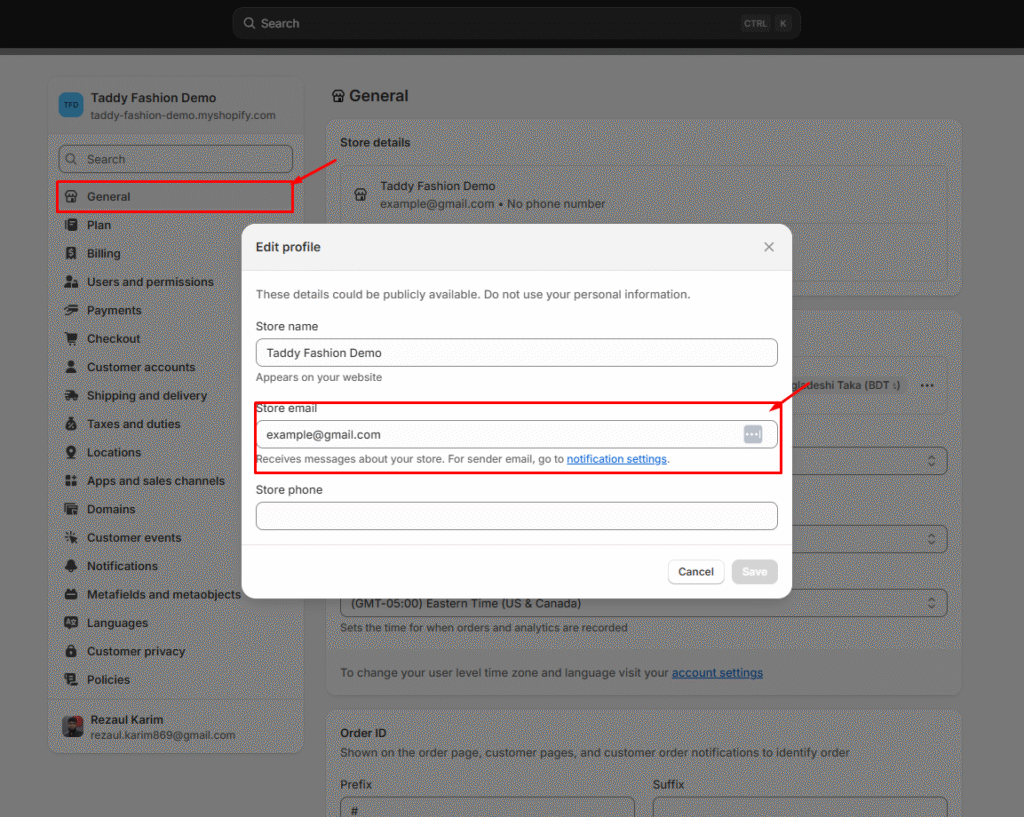
Set up your sender address so emails arrive from a recognizable, professional source.
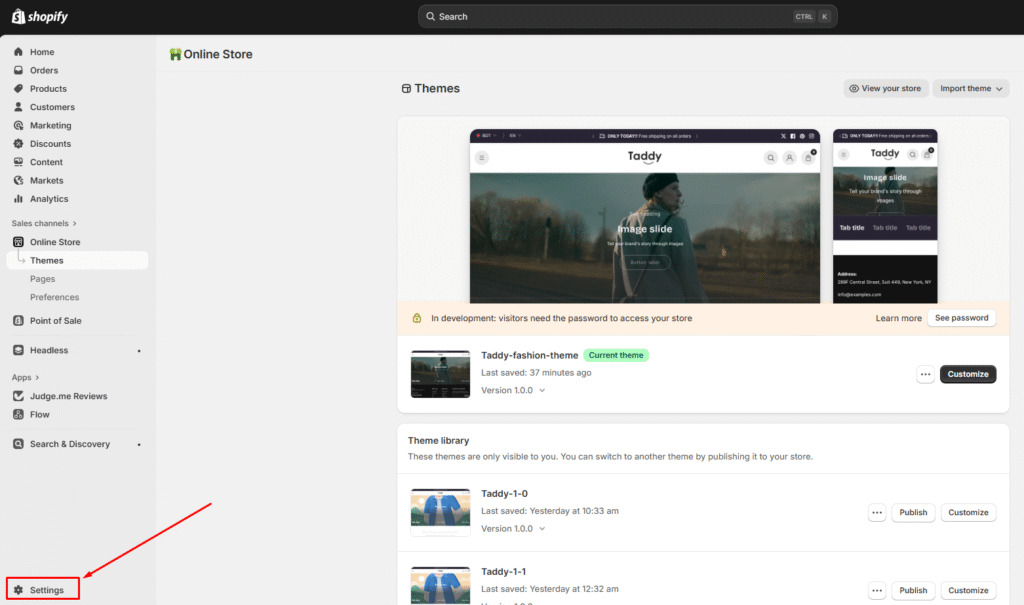
In your Shopify admin, go to Settings → General → Store details.
Use a domain that matches your store for authenticity.
Skip generic addresses like noreply@ to improve inbox placement.
2. Keep an Eye on Subscribers
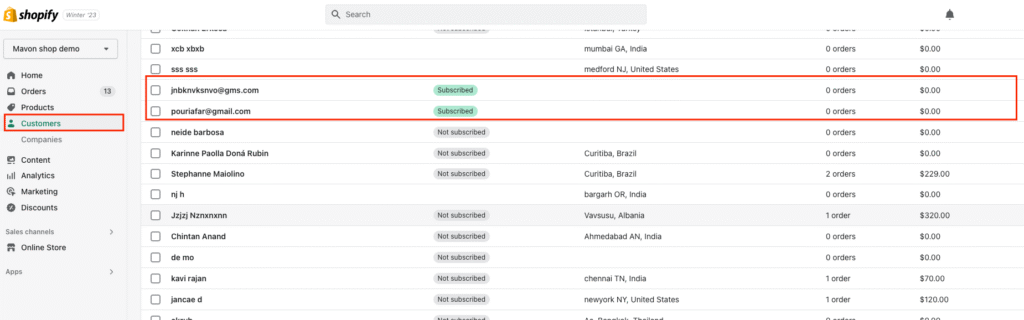
Regularly review your subscriber activity:
Go to Customers in the admin panel and filter for Newsletter Subscribers.
Track growth trends and engagement metrics like open and click rates.
3. Move Forward with Campaigns
Welcome Series: Greet new sign-ups with a friendly, automated introduction.
Smart Segmentation: Organize subscribers by interests or buying habits to send targeted content.
Consistent Outreach: Plan newsletters that blend product news, useful tips, and special offers.
Measure & Adjust: Use analytics to fine-tune timing, subject lines, and messaging for better results.
By setting up a professional sender email and nurturing your list with valuable content, you create a reliable channel that drives repeat visits and steady sales growth.