Address
304 North Cardinal St.
Dorchester Center, MA 02124
Work Hours
Monday to Friday: 7AM - 7PM
Weekend: 10AM - 5PM

Remove the default Shopify branding to create a cleaner, more professional appearance.
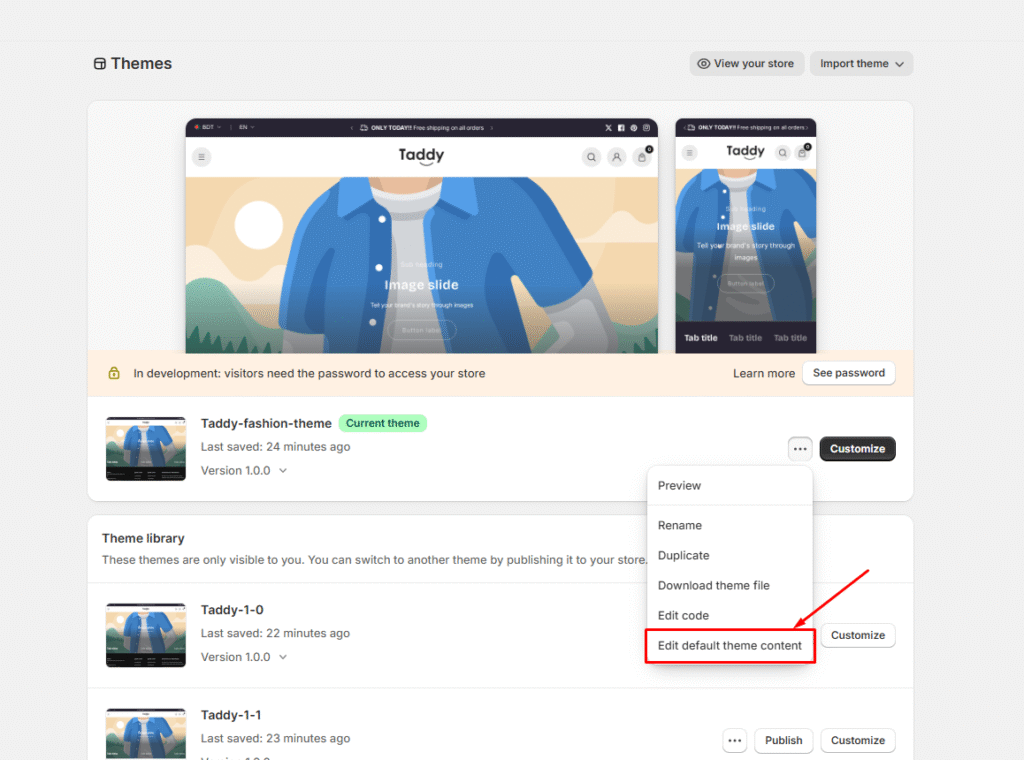
01. From your Shopify admin dashboard, go to Online Store → Themes
02. Find the theme that you want to edit, and then click Actions (three dots icon) → Edit default theme content
You can remove the “Powered by Shopify” message if you don’t want it to appear in your store.
03. In the Filter items box, type powered
04. In the Powered by Shopify box, use the space bar on your keyboard to type a single space. You can repeat these steps for the Powered by Shopify HTML box, which appears on your store’s Opening Soon page if your store is password-protected.
Optional: Repeat this process for the Powered by Shopify HTML field, which controls the message on your password-protected store’s “Opening Soon” page.

Step 5: Click Save to apply your changes.
Your store will display a cleaner, more professional appearance without Shopify’s default branding, allowing your own brand to take center stage.