Address
304 North Cardinal St.
Dorchester Center, MA 02124
Work Hours
Monday to Friday: 7AM - 7PM
Weekend: 10AM - 5PM

Control whether customers see quick checkout options like “Buy with PayPal” or “Buy with Apple Pay” on your product pages.
Access your theme:
Find the product page:
Add or edit buy buttons:
Turn it on or off:
When enabled, customers see extra payment buttons next to “Add to Cart” – things like Shop Pay, Apple Pay, Google Pay, and PayPal. They can skip your cart and pay instantly.
Turn it off if you’re using other checkout apps or prefer the traditional cart flow.
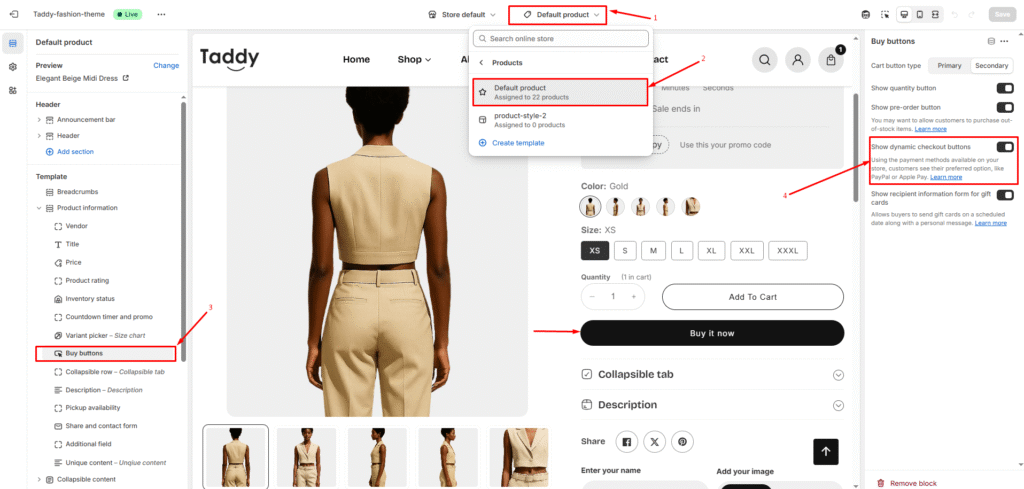
Dynamic checkout buttons will now appear or disappear based on your selection, giving customers faster payment options.