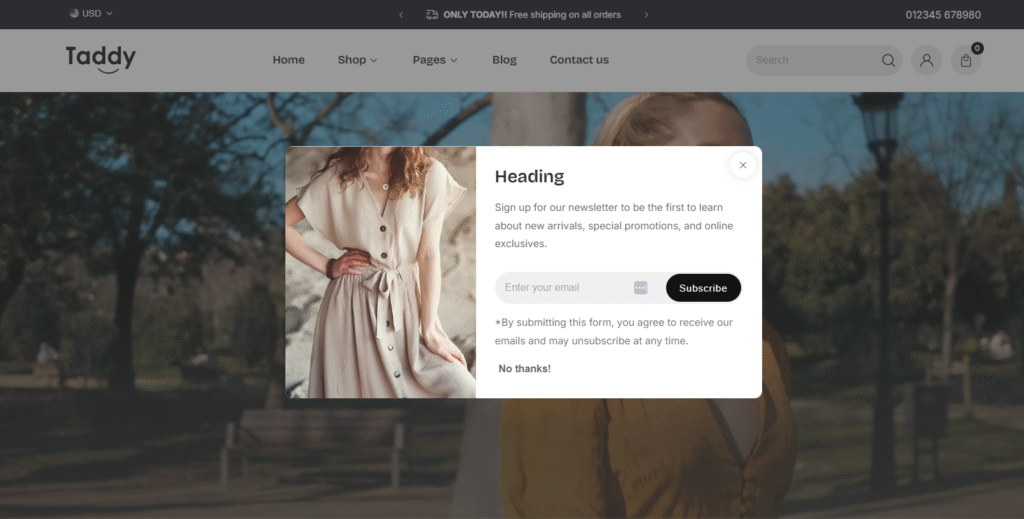
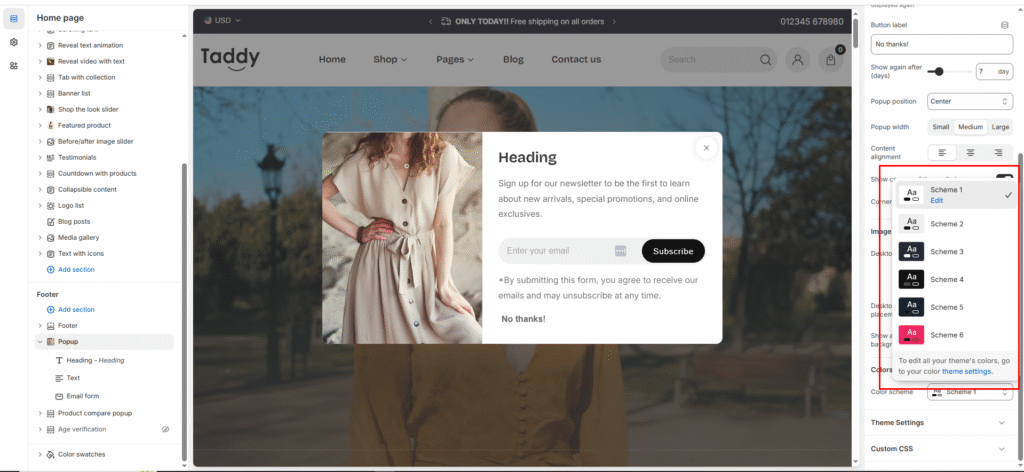
Newsletter popups capture visitor email addresses and help grow your subscriber list. This feature provides multiple customization options to create an engaging signup experience that converts visitors into subscribers.
Accessing Popup Settings
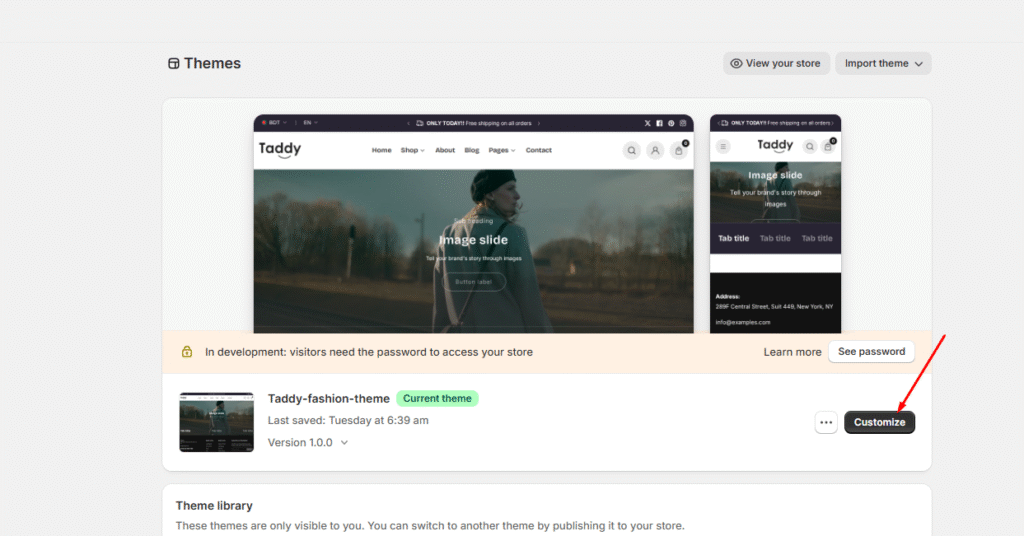
Start by navigating to your theme customization area:
Go to Online Store in your Shopify admin
Click Themes
Find your current theme and click Customize
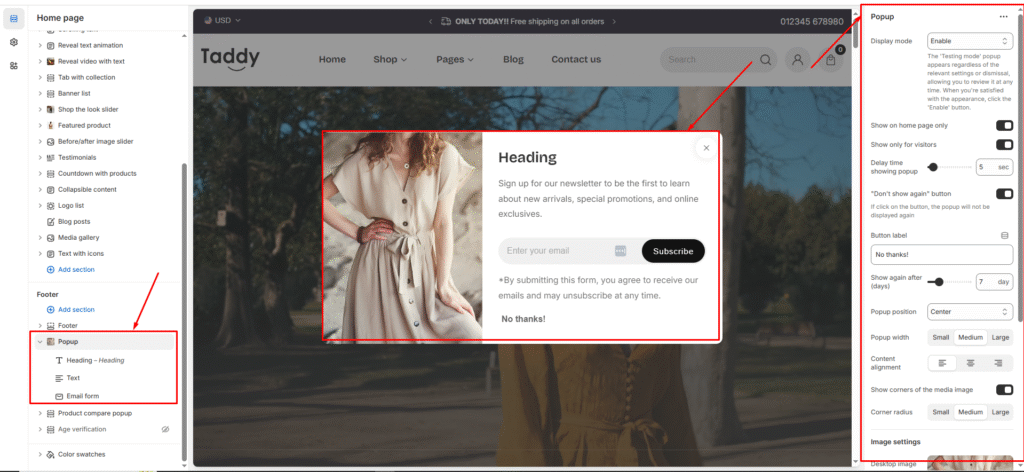
Look for Popup in the left sidebar
Basic Popup Configuration
Configure the text and messaging for your newsletter popup:
Content Settings
Configure the messaging and form elements:
Heading Text
Enter your main popup headline (example: “Get 10% off your first order”)
Keep headlines short and benefit-focused
Test different offers to see what converts best
Description Text
Add supporting text under your headline
Explain what subscribers will receive
Keep the message clear and compelling
Email Form
The email input field is included automatically
Customize the placeholder text if desired
Add subscribe button text
Visual Customization
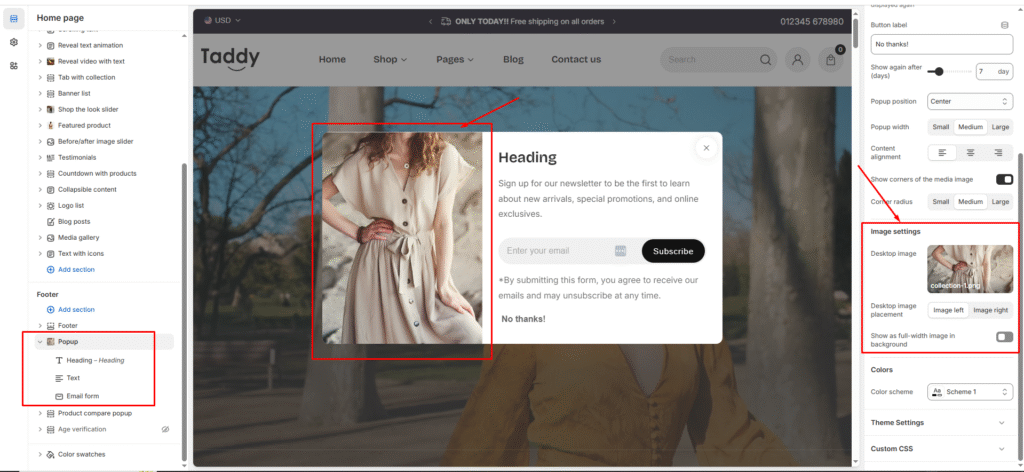
Image Settings
Add visual appeal to your popup:
Desktop Image Upload
Choose an attractive product or lifestyle image
Recommended dimensions: 500px x 400px for optimal display
Use high-quality images that represent your brand
Image Positioning
Image left/right – Position image beside the form
Full-width – Use image as background
No image – Text-only popup for faster loading
Color Scheme
Customize colors to match your brand:
Background Colors
Set popup background color
Choose colors that complement your website design
Ensure good contrast for readability
Text Colors
Primary text color for headlines and descriptions
Secondary text for form labels
Make sure text is easily readable
Button Styling
Subscribe button background color
Button text color
Hover effects for better user experience
Display Settings
Control when and how your popup appears:
Popup Timing:
Show only for visitors – Target new visitors only
Delay timing – Set delay before popup appears
Exit intent – Show popup when user tries to leave
Popup Position:
Center – Display popup in center of screen
Content alignment – Left, center, or right alignment options